Apple and system calendars
Calendars that appear in Apple Calendar can appear in InstaCal through the system calendar store. Grant Calendar access during onboarding, then open Settings → Calendars to show or hide individual calendars.
This route works well for iCloud and any account you already manage in the device’s Internet Accounts settings.
Connect an account directly
Open Settings → Accounts and choose Add Direct Account…. On Mac, Accounts is the second item in the Settings sidebar, directly under General.
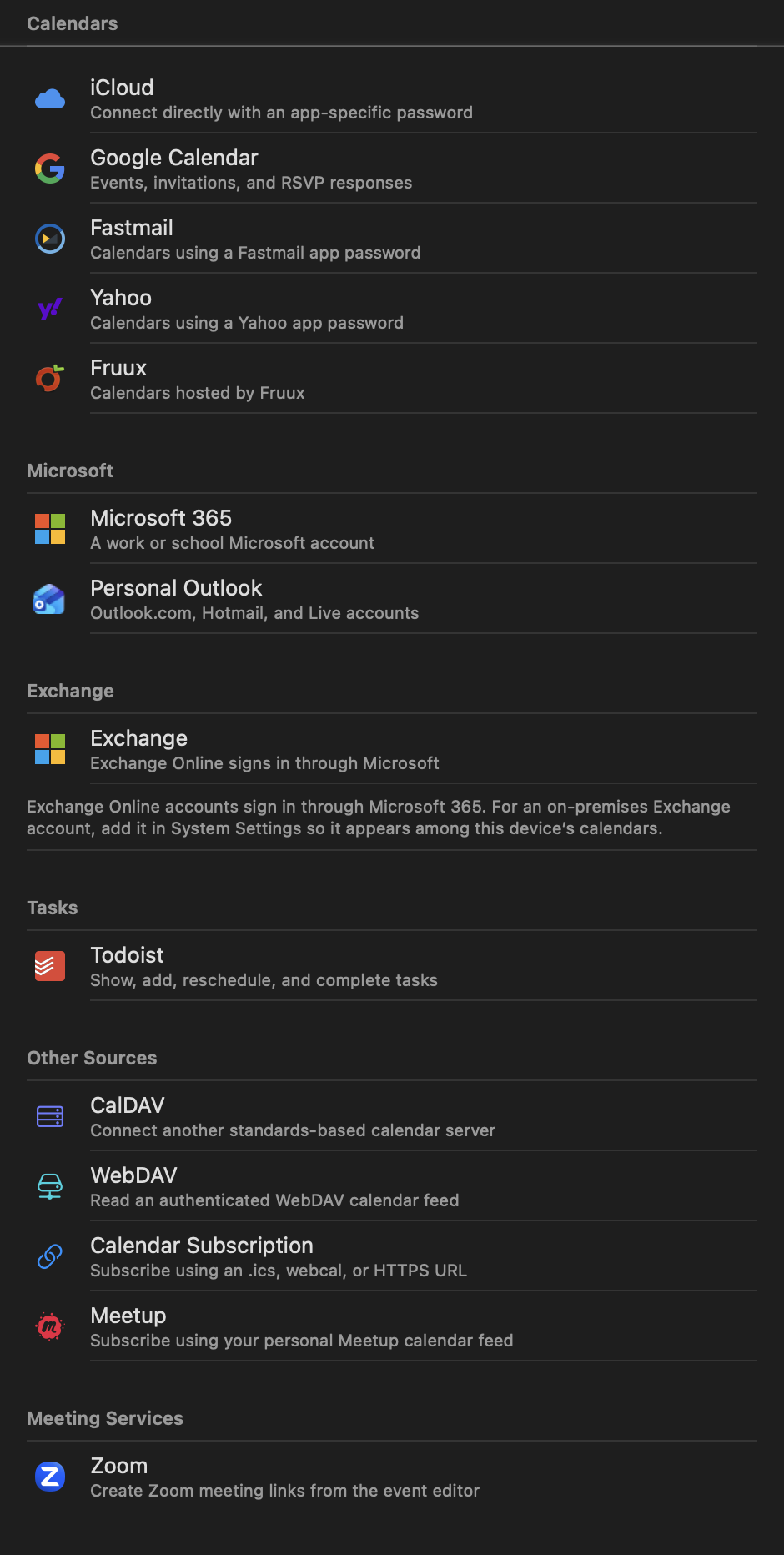
Direct accounts sync inside InstaCal rather than through the system, which is what makes provider-specific behavior possible: incremental sync, richer invitation handling, replies sent from InstaCal, and conference links minted in the editor. They can be used alongside Apple-managed calendars. Credentials stay in the device’s Keychain.
The list is grouped, and every group is on Mac, iPhone and iPad alike:
| Group | What it holds |
|---|---|
| Calendars | iCloud, Google Calendar, Fastmail, Yahoo, Fruux |
| Microsoft | Microsoft 365 (work or school), Personal Outlook (Outlook.com, Hotmail, Live) |
| Exchange | Exchange — Exchange Online signs in through Microsoft 365 |
| Tasks | Todoist — Google Tasks and Microsoft To Do arrive with their calendar accounts |
| Other Sources | CalDAV, WebDAV, Calendar Subscription, Meetup |
| Meeting Services | Zoom |
An on-premises Exchange account is not connected here. Add it in System Settings so it arrives among the device’s calendars.
Google and Microsoft
Choose Google Calendar, Microsoft 365 or Personal Outlook and finish the provider’s own sign-in page. InstaCal returns to Settings and begins its first sync.
A new Google account arrives with two things already set from Google’s own preferences, so InstaCal matches the calendar you are used to. Week start and Show declined events are seeded from Google’s settings — but only when you have never chosen them yourself here. And a calendar you have unchecked in Google Calendar starts out hidden in InstaCal. Show it again under Settings → Calendars and that choice sticks.
A calendar two connected Google accounts can both see — a shared family calendar, the same holiday feed — is listed under both accounts. Your edits go through whichever account can actually write to it.
iCloud, Fastmail, Yahoo, Fruux and other CalDAV servers
iCloud, Fastmail, Yahoo and Fruux each arrive with their server address already filled in, so you supply only the account email or username and a password. All four expect an app-specific password rather than your ordinary one, and each form carries an App-specific password help link straight to the page where that provider issues them.
Any other standards-based server goes in under CalDAV, which asks for Server URL, Username and Password. A bare host name is understood as https. Choose Connect and InstaCal verifies the account before saving it.
Subscribe to a calendar feed
Choose Calendar Subscription to follow a published calendar — a webcal, webcals or HTTPS .ics link. Paste it into Subscription URL and give it a Name (optional). Subscribed events are read-only.
If the feed is private, open Authentication and add a Username and Password; leave both blank for a public feed. Under Refresh & Alerts, Refresh decides how often InstaCal re-checks the feed:
Every 15 minutes, Every 30 minutes, Every hour (the default), Every 2 hours, Every 4 hours, Every 12 hours or Every day.
Use alerts from this calendar is off out of the box; turn it on to let the feed’s own alarms notify you. Choose Add Calendar to finish.
WebDAV reads an authenticated HTTPS .ics calendar from a WebDAV server, and Meetup subscribes to the personal iCal link Meetup shows on its calendar export page. Both use the same form. A feed larger than 20 MB is refused rather than downloaded.
Todoist tasks beside your reminders
Choose Todoist and sign in, and your Todoist tasks appear wherever InstaCal shows reminders — the agenda, the reminders list, Month, widgets, notifications and Apple Watch. Todoist projects act as reminder lists, in their Todoist colors.
You can add a task, reschedule it, complete it and reopen it, and Todoist’s p1, p2 and p3 map to InstaCal’s High, Medium and Low priorities in both directions. Ticking a task off in a widget or on the Watch completes it in Todoist.
Two limits are worth knowing. A recurring Todoist task keeps its schedule locked in InstaCal’s editor, because InstaCal cannot express Todoist’s full recurrence rule — edit that in Todoist. And a recurring reminder cannot be moved between Todoist and another account, because the move would lose the rule.
Choose which projects appear, and which one receives new tasks, on the account’s own page under Settings → Accounts.
Google Tasks and Microsoft To Do
A connected Google or Microsoft account also brings its task lists. They do not merge into your reminders the way Todoist's do — they appear inside Tasks, in their own group in the sidebar headed with the service's name and the account's, beside your personal task library.
They stay the service's tasks rather than copies: a change made in InstaCal reaches Google Tasks or Microsoft To Do, and a change made there reaches InstaCal. Because of that, they are the way to have the same task list on your Mac and your iPhone — the personal library is per-device.
Zoom
Zoom is a meeting service rather than a calendar: connecting it lets the event editor create a Zoom meeting on any calendar, including ones whose provider offers no conferencing of its own. See Zoom Meetings for the whole flow. Zoom needs macOS 14.4 or iOS 17.4; on earlier systems the row is dimmed and says so.
Read account status
The Accounts page labels each connection as Connected, Syncing, Offline or Sign-in Needed. Offline accounts keep showing their last cached events. Sign-in Needed means the provider rejected or expired the saved authorization; select the account and reconnect it.
Remove an account
Open Settings → Accounts, select the direct account and remove it. InstaCal deletes its saved authorization and local cache for that connection. The original calendar and events remain with the provider.
Note: Adding the same provider through Apple Calendar and directly through InstaCal can expose the same event twice. InstaCal de-duplicates matching cross-source events where possible, but using one route per account keeps the setup easiest to understand.
