Open the window
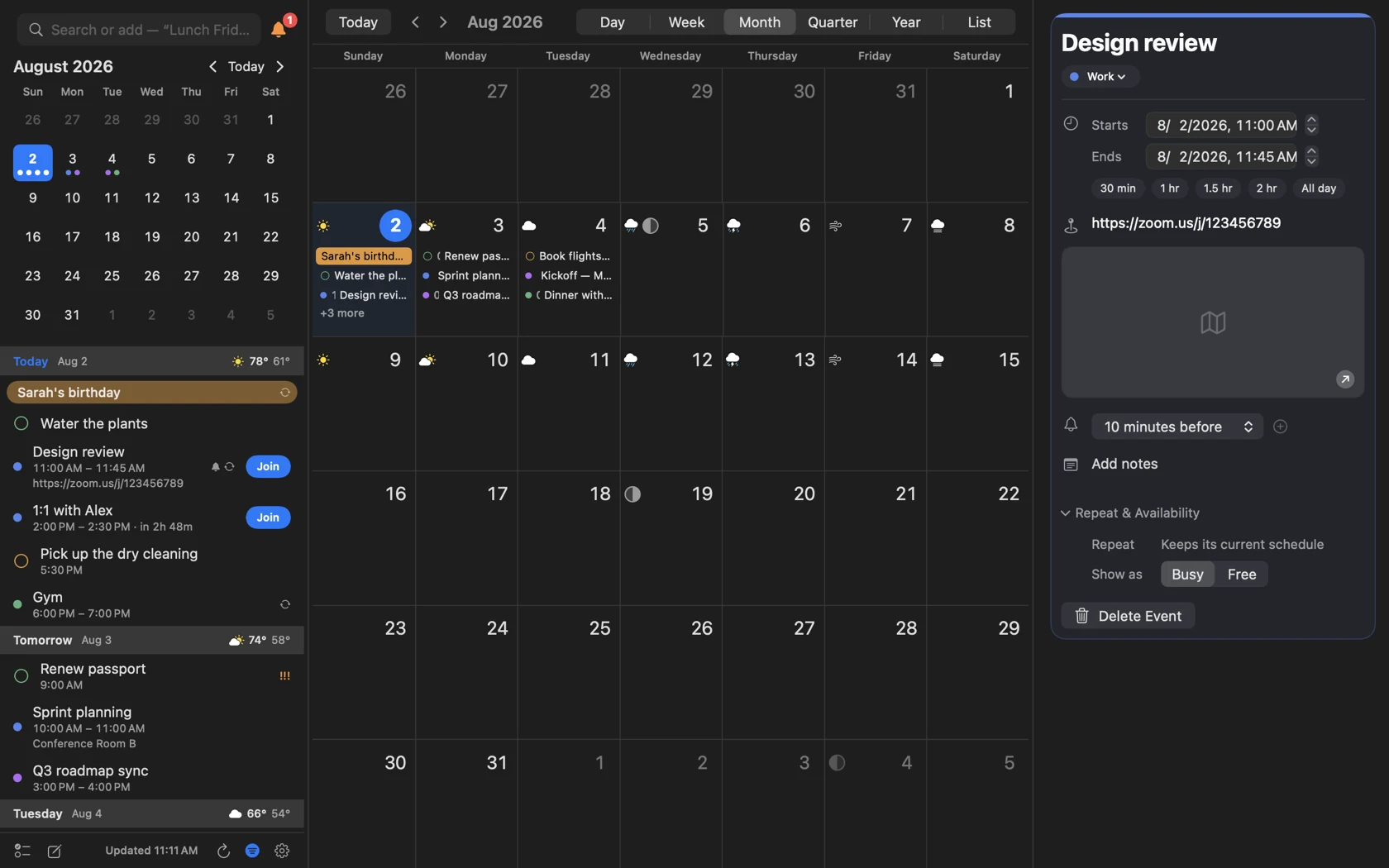
Choose Window → Calendar Window or press Command-0. The window is designed for planning that needs more room than the menu bar panel.
Switch views
Use the toolbar or the view commands:
| View | Shortcut | Best for |
|---|---|---|
| Day | Command-1 | One detailed timeline |
| Week | Command-2 | Time across several days |
| Month | Command-3 | The month’s shape and multi-day bars |
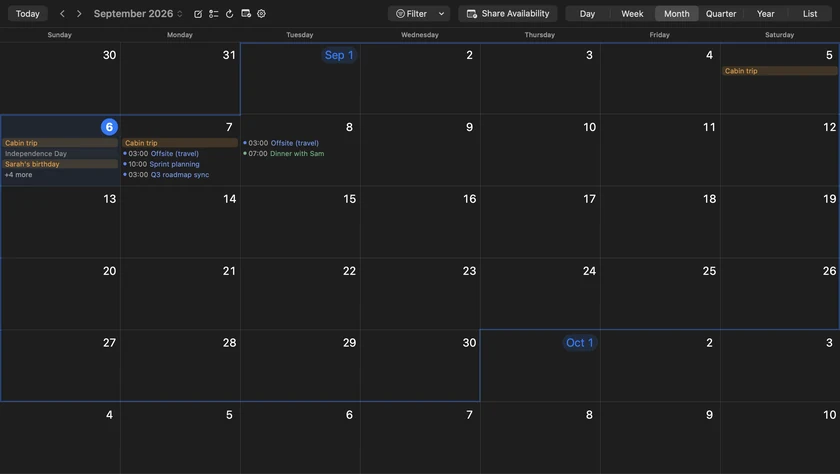
| Quarter | Command-4 | A quarter as one continuous grid |
| Year | Command-5 | Long-range density and dates |
| List | Command-6 | A searchable chronological schedule |
| Week on Week | Command-7 | The same weekday across seven weeks |
Press Command-T to return to today.
Week on Week
Week on Week is off until you switch it on, in Settings → Appearance → Week on Week view. It is opt-in so the view switcher stays six wide for everyone who does not plan by weekday.
It lines up one weekday across seven weeks, a week per column — seven Mondays side by side — so a recurring commitment, a gap, or a steadily filling afternoon stands out in a way the ordinary Week view cannot show. Slide the row a week at a time with a swipe or the arrow buttons.
A second setting appears once it is on: Selected week, which decides where the week you are looking at sits in the row — First column, Middle column or Last column. Middle gives you weeks either side of the one you care about; Last turns the view into a run-up.
Switched on, it joins the toolbar switcher and the View menu like any other view, and its Command-7 shortcut is re-recordable with the rest of them.
Every view is one continuous run
Month is a single run of week rows rather than a stack of separate month grids, so a week that straddles two months is drawn once and scrolling never stops at a boundary. Quarter is the same run at thirteen rows, with a heavier rule where one month meets the next and a small dated chip — Sep 1 — on each month’s first day. Year is a run of month cards, up to four across, and the mouse wheel moves it a row of months at a time the way Month moves a row of weeks.
The ‹ › buttons still page by a sensible unit: three months in Quarter, and in Year a whole year that lands on January rather than the same month a year on.
Week and Day scroll sideways without end in either direction. The hours stretch to fill a tall window, so a full day fits when there is room and simply scrolls when there is not, and the all-day strip above the grid shows every all-day event rather than stopping at four.
See the year as a wall planner
Year draws twelve mini month cards by default. Wall Planner is the other shape: every month gets a row, and the columns are weekdays repeating across it, so every Monday of the year sits in one vertical line — the chart people pin up to plan terms, sprints and holidays by weekday.
Switch from the year's own header, from the View menu, or in Settings → Appearance → Yearly View, where the picker asks How do you want to view the yearly calendar? and offers Month Grid or Wall Planner.
Put the current month first, middle or last in Quarter
Settings → Appearance → Quarterly View → Current month position chooses where the selected month lands when you open Quarter, jump to a date or press Today: First (the two months ahead), Middle (one either side) or Last (the two months behind, for looking back over a term that has just finished).
The same section holds Week numbers in Quarter.
Heat maps, chosen per view
A heat map shades each day by how busy it is instead of drawing individual event dots. Quarter and Year have separate heat maps, so you can colour the quarter and keep the year as dots, or the other way round. Toggle each from the View menu, or in Settings → Appearance as Heat map in Quarter and Heat map in Year.
Choose how many days Week shows
Open Settings → Appearance and find Weekly View → Days Shown: anything from 2 days to 7 days, starting at 3 days. Fewer days give each column more room; seven turns Week back into whole-week paging. Day and Week on Week keep their own column meanings and are not affected.
Show work days only in Month
Settings → Appearance → Calendar → Month shows chooses All days (the default) or Work days. Work days steps the weekend columns aside so the working week gets the whole width.
You can also switch it right on the grid: the weekday header row — Sunday, Monday, Tuesday and so on — is itself a menu. Click anywhere along it and choose All days or Work days. It works in Quarter as well as Month.
Choose what the sidebar holds
The left column is a mode, not just a toggle. Open Settings → Appearance → Calendar → Sidebar, or choose View ▸ Sidebar, and pick one:
| Sidebar | What the column shows |
|---|---|
| Agenda | Upcoming events and reminders beside the current view — the default |
| Months | A scrolling run of month cards |
| Calendars | The calendar list under the mini calendar |
| Months and Calendars | The run and the list sharing the column |
| Hidden | No column at all |
Hidden also removes the toolbar’s sidebar button, so View ▸ Sidebar is the way back. With no column, the footer’s buttons move up beside the month title in the order you arranged them, and Reminders opens its list in a popover because there is no column to flip.
Show Sidebar and Hide Sidebar in the View menu collapse and reveal whichever mode you chose; they are unavailable while the mode is Hidden.
Use the inspector
Select an event to open its details in the inspector, where supported fields can be edited in place. Toggle the sidebar with Control-Command-S and details with Control-Command-I.
Navigate and edit
Select a time or day to create an item. Drag timed events to move them and resize their edges in 15-minute steps. Month, Quarter and Year preserve spanning multi-day events as bars rather than unrelated dots.
Search filters the visible calendar. Smart Filters can save the query, selected calendars, rules and view as a reusable workspace.
