Search
Open the panel and start typing. A short name or phrase searches existing events. Select a result to inspect or act on it.
Create an event or reminder
Type a sentence such as Lunch with Amara Friday at 1 at Lilia. InstaCal shows a live preview of the title, date, time, duration, location and destination calendar. Adjust the preview if needed, choose Event or Reminder, then press Return.
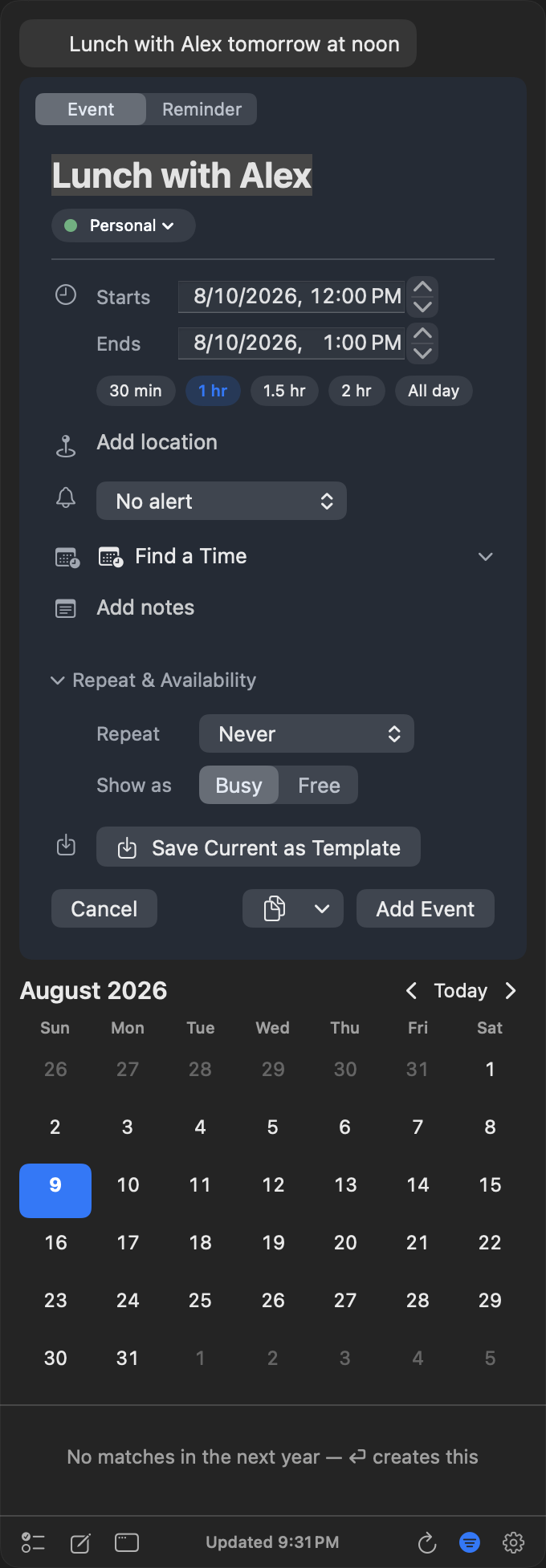
Quick Add understands 12 supported languages. On supported devices running macOS 26, Apple Intelligence can add on-device context and calendar inference. InstaCal’s built-in parser remains available and nothing you type is sent to an InstaCal server.
Name a calendar or use the default
Star a default under Settings → Calendars. Quick Add uses it unless the sentence names another visible calendar. The preview always shows the destination before anything is saved.
Jump to a date
Type where you want to go
Click the date at the top of the calendar window — the title itself is the button, with a small chevron beside it — and a Go to date field opens in a popover under a month grid. Type a phrase and InstaCal shows the date it worked out; press Return to take it, or pick a day out of the grid instead. Today is always one click away in the same popover.
It understands a good deal more than a date: next friday, dec 25, aug 2027, 3rd Tuesday in October, last Friday of October 2027, end of the month, in three weeks, 2027 on its own, or a bare day number, which means that day in the month you are looking at. A date with no year means the next time it comes round, today included; give a year and you can go backwards.
Dates that cannot exist are refused rather than quietly rolled forward — Feb 30 clears the result and Return does nothing rather than landing you on March 2 — and this, next and last weekday count weeks from whichever day you set as the start of the week.
If the wording is something the built-in parser does not know, InstaCal can hand the phrase to Apple Intelligence on the devices that have it, and only then: a phrase it already understands never leaves the device, and neither does anything about your calendar. What is sent is the words you typed, today's date, the month on screen and your language. The date that comes back is shown for you to confirm, never jumped to on its own. This follows the same Parse quick entry with Apple Intelligence switch as quick add, so turning that off keeps everything local.
Change an existing event
English Quick Edit recognizes commands such as Move gym to Friday, Rename lunch to Team lunch and Cancel dentist. InstaCal finds the likely item and shows the proposed change. Confirm the preview to apply it; cancel to leave the calendar untouched.
Tip: If your words could be either a search or a new title, keep typing a date, time or edit verb. The preview makes the chosen interpretation explicit before Return does anything.
