What Countdowns are
Countdowns keep important dates visible without creating a second calendar. Link an existing event when the date already belongs on your calendar, or add a standalone date for a birthday, anniversary, trip or milestone.
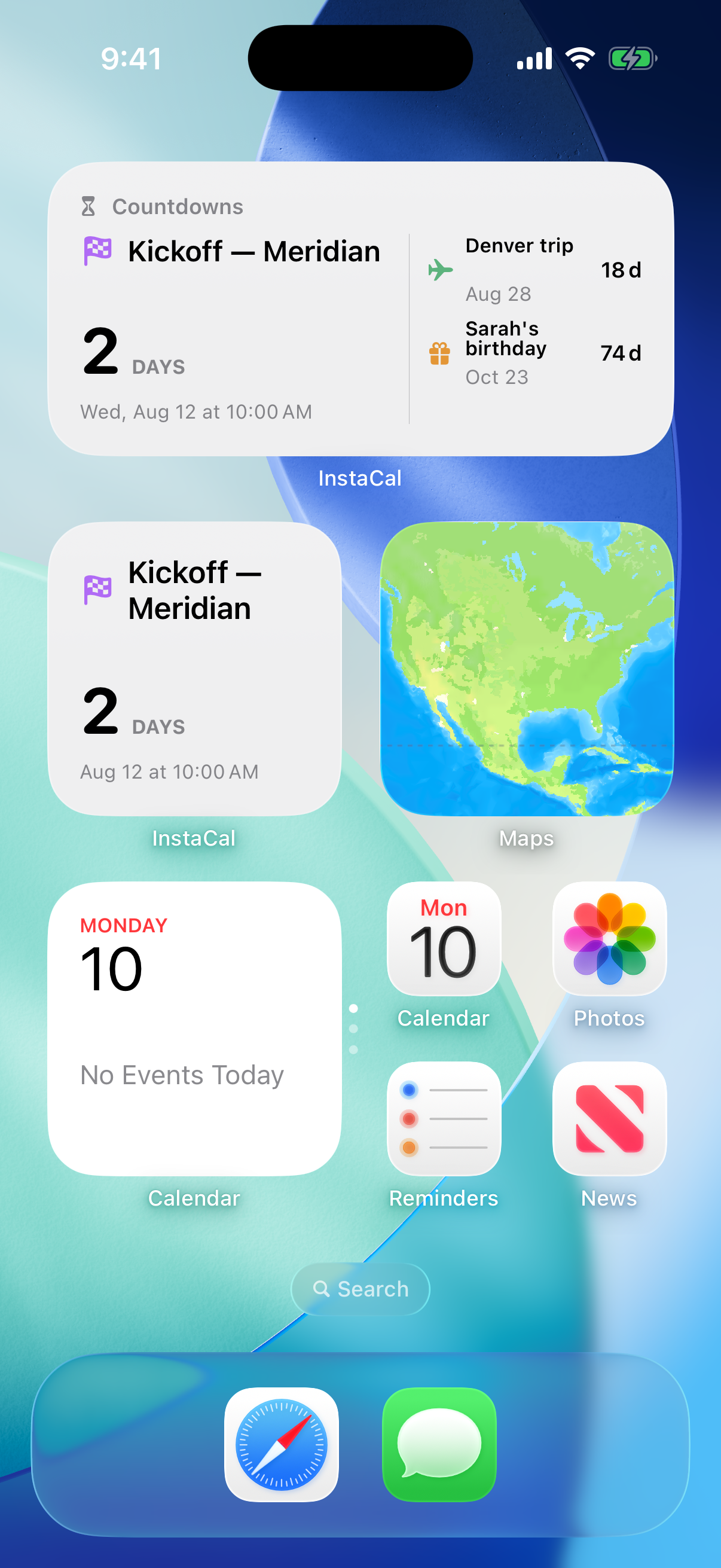
The closest active date leads automatically. You can feature one date as the default hero when a farther-away moment matters more.
Add a calendar event
Open the event, open its actions menu and choose Add to Countdowns. Event detail shows Shown in Countdowns after the link is created.
The countdown follows the source event’s title, date, time, end and calendar color. Renaming or rescheduling the event updates the linked countdown after InstaCal refreshes. The event’s normal calendar alerts remain in charge; linking it does not create a duplicate alert.
To unlink it without deleting the event, return to the actions menu and choose Remove from Countdowns.
Add a standalone date
Open Settings → Countdowns, choose Add Date, enter a name and select the date.
- Enable Include a Time when the exact hour matters.
- Enable Repeat Yearly for birthdays and anniversaries.
- Choose a symbol and color, then save.
Edit or remove them from the Countdowns manager.
Give a countdown a photo
The editor's Photo section replaces the symbol and colour with a picture, used everywhere that countdown appears: as the row's thumbnail in the manager, behind the full-screen poster, and in photo-row widgets.
Choose from Photos picks one from your own library, with no network involved.
Generate with AI draws one from a description. Type what you want — the place, the time of day, the mood; one clear sentence gives a better picture than a single word — and optionally Add a Photo of You so you appear in the scene. One tap on Generate draws one picture, which takes about a minute and goes straight onto the countdown. There is no preview step and no Try Again: if you want a different picture, run it again from the editor. Cancelling mid-draw asks first, because the image is thrown away.
Your description and your reference photo, if you added one, are sent to Higher Bar Apps to be drawn. Nothing else goes with them. Privacy and Data Handling has the detail.
Remove Photo puts the symbol and colour back.
The poster
A countdown's poster is the full-screen version: the picture, a stacked months / days / hours / minutes column, and the title and date low on the image. Open it by tapping a countdown row on iPhone and iPad, by choosing Show Poster from a row's menu on the Mac, or by tapping any Countdowns widget — a widget tap always lands on the poster, even for a countdown linked to a calendar event.
From the poster you can Feature in Widgets (or Stop Featuring), share it as an image, and reach the rest under More: Open Event for a linked countdown, Show in Menu Bar on the Mac, Remove From Countdowns, and Delete Countdown.
Cross the days off
A countdown can be a paper calendar you mark each day instead of a poster. At the top of an open countdown, the Poster / Calendar picker swaps between the two, and the choice is remembered per countdown.
The Calendar side draws the month with an X through every day already gone and the target day ringed. Turn on Cross Off Countdown Days first, in the Countdowns manager's More → Countdown Settings, or the calendar tells you it is off and nothing can be marked.
With it on, today's square is the only one you can act on. Cross off today draws the X by hand; tap it again to take it back. Past days cross themselves off without you, so a week away from the app does not leave a gap you have to fill in, and the count is right whenever you come back. On the target day the button gives way to Today's the day!
While cross-off is on, an existing countdown gains a Cross Off From date in its editor, under Calendar. That is where the run of Xs begins — useful for a countdown you created halfway through the thing it is counting, and it cannot be set later than the target.
Crossed-off days follow you through iCloud along with the countdowns themselves, and the two devices' marks are merged rather than one overwriting the other. Turning the feature off keeps everything you have already marked.
Pin a countdown to the Mac menu bar
On the Mac, any countdown can become its own menu bar item — a circular photo with the count beside it, reading something like 29d. Choose Show in Menu Bar from the poster or a row's menu, and Remove From Menu Bar to take it back. Click the item for the poster; right-click for Open Countdown… and the rest of its actions.
Manage and feature dates
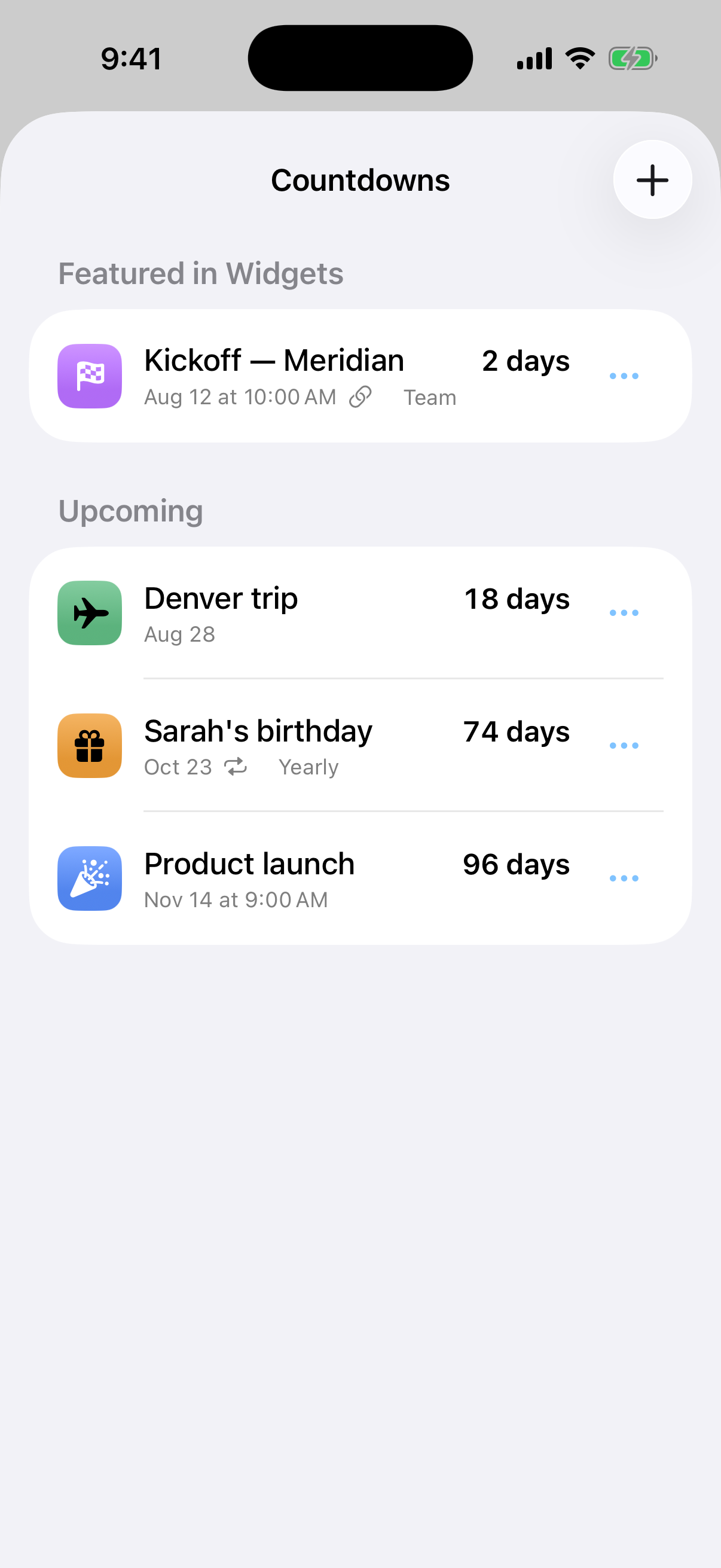
Open Settings → Countdowns to see the featured date and the upcoming lineup. Use a row’s actions menu to edit a standalone date, remove a countdown or choose Feature in Widgets.
Choose Stop Featuring to let the nearest active date lead again. Featuring changes the Smart Upcoming default; it does not move, rename or otherwise edit the underlying event.
Add and configure the widget
Enter the system’s widget editing mode, search for InstaCal and choose Countdowns. The system offers small, medium, large and extra-large layouts where supported, plus compact Lock Screen families on iPhone.
Small and accessory widgets show one date. Larger families add more upcoming dates while keeping the hero prominent. Where countdowns carry photos the widget draws them as full-bleed rows: one picture in the small size; one large hero in the medium, or two rows when there is more than one date; three rows in the large; and up to six in the extra large, in two columns of three. A countdown with no photo draws its symbol on its colour in the same layout, so a mixed list still reads as one design.
Long-press or right-click a placed widget and choose Edit Widget. Leave Featured Date on Smart Upcoming, or choose one saved date for that placement. Different widget instances can pin different dates. If a pinned date is removed, the widget returns to Smart Upcoming.
Open a countdown
Select a calendar-linked countdown to open its exact event. Select a standalone date to open it in the Countdowns manager. Selecting the widget header or an empty state also opens the manager.
Date-only and distant entries use calendar-day counts with labels such as Today and Tomorrow. Near timed dates use relative time, and a linked event reads Now until its calendar end time. Annual dates advance to their next occurrence automatically.
Note: Your countdowns and your featured choice follow you through iCloud, so a date added on the Mac turns up on your iPhone. Photos do not — a photo you chose or generated stays on the device that made it, and on your other devices that countdown falls back to its symbol and colour. A widget's own pinned date belongs to that placement, so it is set separately on each device.
