Choose which schedule warnings you want
On Mac, open Settings → Events → Schedule Warnings. On iPhone or iPad, open Settings → Alerts and find the Schedule Warnings section. There is no single conflict switch: each kind of warning is its own setting, so turning on break warnings does not also start flagging your evenings.
| Warning | What it means | Out of the box |
|---|---|---|
| Event overlaps | The event runs over another busy event | On |
| Short breaks | The gap after the previous event is smaller than your minimum break | Off |
| Travel time | The gap after the previous event is smaller than the estimated journey plus your buffer | On |
| Outside working hours | The event falls outside the days and hours you work | Off |
Switching on Short breaks reveals a Minimum break picker: None, or 5, 10, 15, 30, 45 or 60 minutes. It starts at 10 minutes.
Switching on Outside working hours reveals the working week itself — a row of day buttons, plus Workday starts and Workday ends. Out of the box that is Monday to Friday, 9:00 AM to 5:00 PM. A window that runs overnight, such as 10:00 PM to 6:00 AM, is understood. An event that begins on one day and ends on another always counts as outside.
Travel-time warnings need travel estimates. If Show Travel Time is off, or the event has no place InstaCal can resolve, there is no journey to compare the gap against and no warning appears.
What never raises a warning
Warnings are only raised for events that genuinely take the time: an event has to be timed rather than all-day, marked Busy rather than Free, longer than zero minutes, and not one you have declined. A declined meeting or a Free-marked block sitting on top of your afternoon is deliberate, so InstaCal leaves it alone.
Short-break and travel-time warnings are measured against the nearest event that ends before this one starts, not against everything earlier in the day.
See conflicts while editing
A warned event carries the warning on the event itself: Overlaps another event, Not enough break time, Not enough travel time or Outside working hours, with the detail naming the other event and the minutes involved. The warning appears before you save, and you can still keep the time when the conflict is intentional.
Dismissing a conflict keeps it dismissed until the conflict itself changes. When anything is being ignored, a Stop ignoring N conflicts button appears at the foot of Schedule Warnings; it is hidden when there is nothing to undo.
See what a conflict costs
On Mac, iPhone and iPad alike, an overlapping event gets a card of its own on the event’s details: it names the other event, says how long the two collide for and the exact minutes both are busy, and draws them on one timeline with the disputed stretch marked. Open the card — Fix on the Mac, a tap on iPhone and iPad — for the ways out:
- An open time to move it to. InstaCal looks up to three weeks ahead and says so when it finds none.
- Shortening the event, offered as a new end time or a new start time.
- Marking it free (Mark it as Free on Mac, Mark It as Free on iPhone and iPad).
- Deleting it, after a confirmation.
- Ignoring this one collision (Ignore this conflict on Mac, Ignore This Conflict on iPhone and iPad).
When two events are involved, Which event to change picks which one the fix applies to; an event on a read-only calendar says so rather than offering a fix it cannot make, and a change to one occurrence of a repeating event says it changes that occurrence only.
The card can also offer Never Conflict with “calendar” for the other event’s calendar. That keeps the calendar visible and stops it raising conflicts from then on — the right answer for a calendar you can see but cannot act on, such as a colleague’s. Review or undo those choices under Settings → Events → Schedule Warnings → Check conflicts on on Mac, or Settings → Alerts → Schedule Warnings → Check Conflicts On on iPhone and iPad.
An event that is only outside your working hours is not treated as a collision. It reads as a quiet note on the details rather than an orange warning, because nothing is actually double-booked.
Hear about a conflict before the event
The warnings above are marks on the calendar. To be told about one in advance, turn on Schedule Risk Alerts — on Mac under Settings → Notifications, on iPhone or iPad under Settings → Alerts. It is off out of the box.
With it on, choose how far ahead to be warned: 15 minutes, 30 minutes, 1 hour or 2 hours. It starts at 30 minutes. The alert repeats what is already marked on the event, said once while there is still time to move something. Quiet Hours holds these back like every other InstaCal alert.
Find an open slot
Open an event editor, set the intended duration and choose Find a Time. InstaCal evaluates the calendars currently in scope and offers open slots that respect your configured workday and breaks.
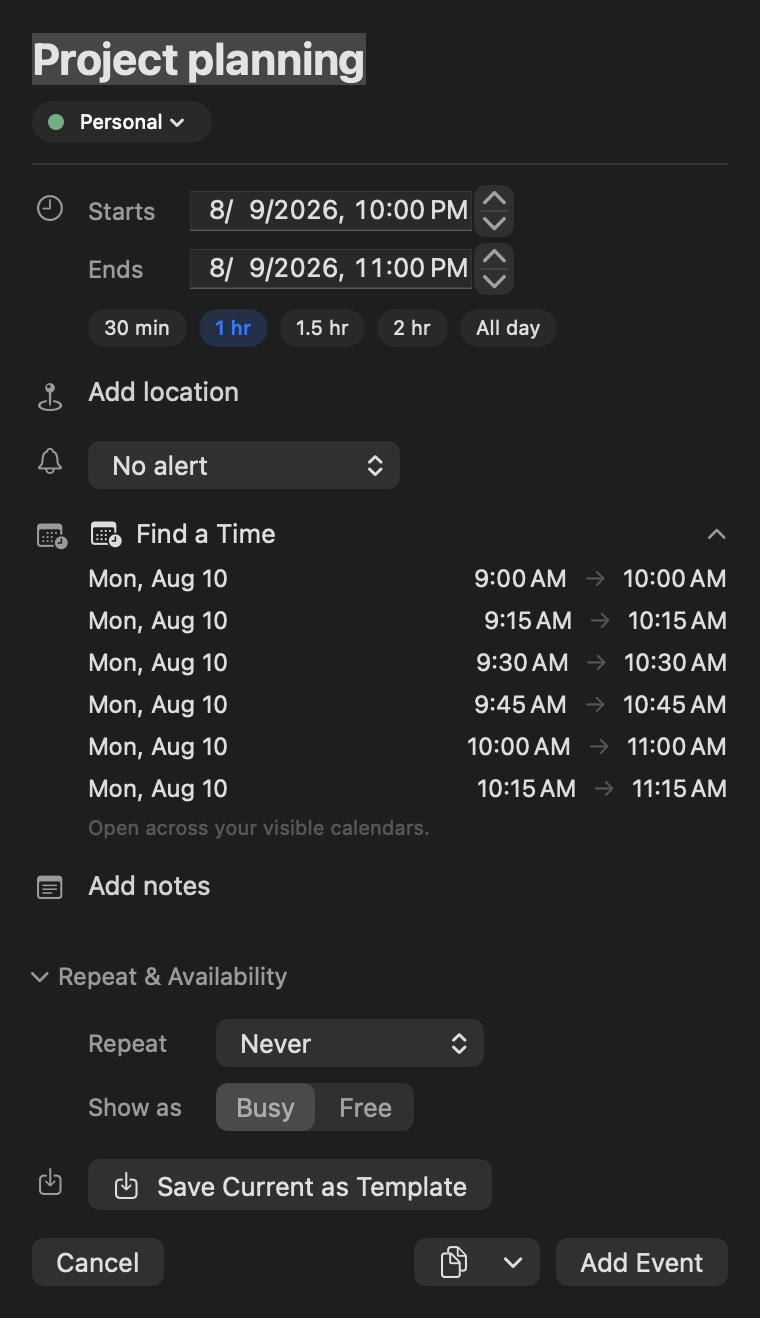
Select a suggestion to place it into the editor, then review attendees, location, travel and alerts before saving.
Travel-aware suggestions
When nearby events have resolvable locations and travel features are enabled, availability can include the journey rather than treating the gap as empty time.
Warning: Find a Time sees only calendars available to InstaCal. A hidden or disconnected calendar cannot protect a busy period, so verify the calendar scope before sending an invitation.
