Add a widget
On Mac, right-click the desktop and choose Edit Widgets. On iPhone or iPad, touch and hold the Home Screen, choose Add, search for InstaCal and select a size.
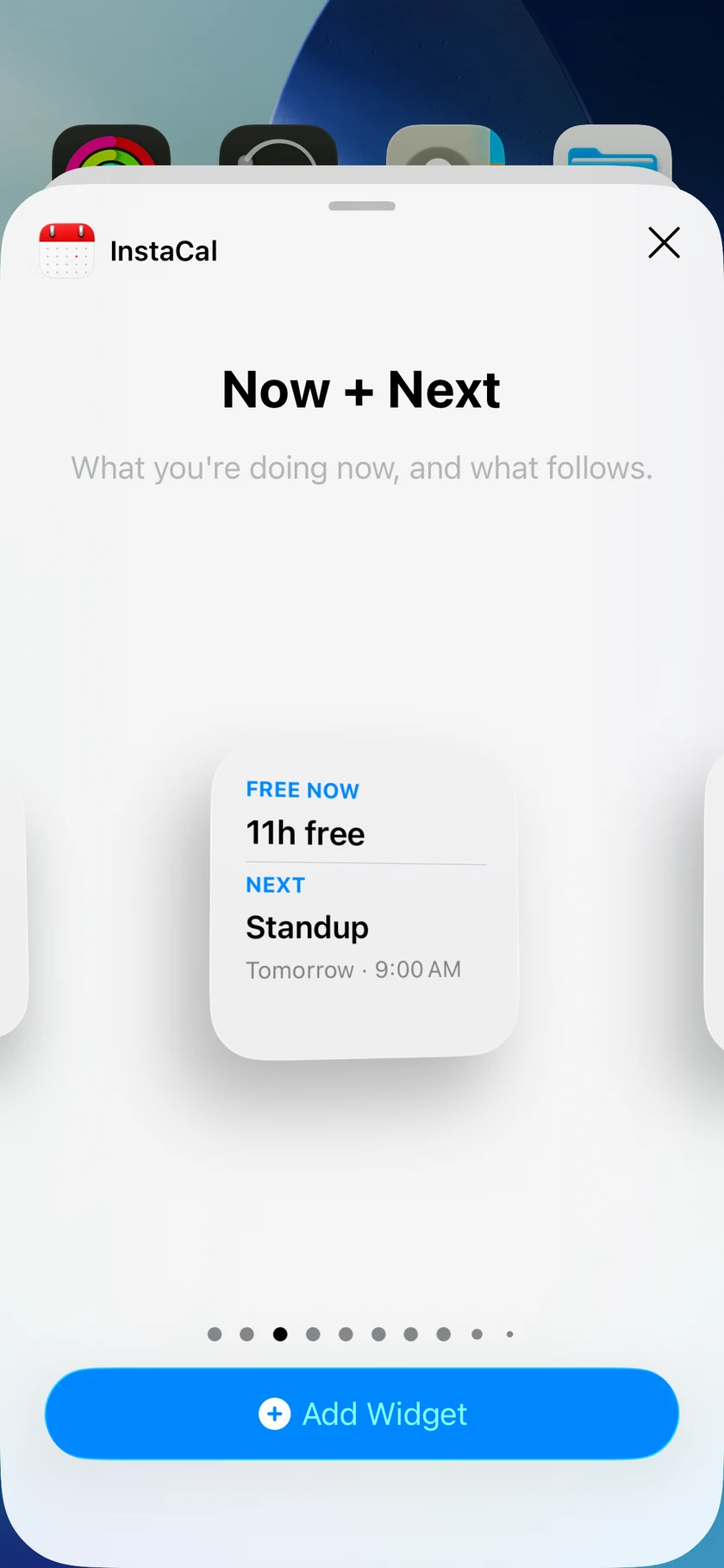
Widget choices
InstaCal’s ten designs are Next Event, Now + Next, Days Ahead, Week Map, Reminders, Today, Month, Up Next + Calendar, Agenda List and Countdowns. Available sizes vary by platform.
Agenda List shows your days as one continuous list grouped by day, in every size from small upward. It is interactive: page through events and move between days inside the widget itself, and complete a reminder without leaving the Home Screen.
Days Ahead, Up Next + Calendar and Agenda List also offer the tall extra-large portrait size on macOS 27 and iOS 27. On earlier systems those designs simply offer medium, large and extra large instead.
Month and Week layouts draw multi-day events as continuous bars. Agenda and reminder widgets keep date-only reminders as Anytime and leave due reminders visible until completed.
Countdowns can follow a calendar event or a standalone important date. Small and accessory families focus on one moment; larger families add more of the upcoming lineup. See Countdowns and Important Dates for setup.
Configure a widget
Long-press or right-click the widget and choose Edit Widget. Depending on the design, choose calendars or a Calendar Set, event and reminder visibility, list placement, size-specific density and theme.
Up Next + Calendar adds its own per-widget controls. Privacy can show Full Details, Times Only or Busy Only, and Show Weather can keep forecast context on one placement while hiding it on another. Show Countdowns adds your countdowns to the days they fall on; it starts off, because a widget about today should not grow a strip of trips and birthdays nobody asked it to keep. These choices affect only that widget.
Countdowns lets each placement use Smart Upcoming or pin one saved Featured Date. Removing a pinned date safely returns that instance to Smart Upcoming.
Mac widgets can use System, Light or Dark independently of the Mac appearance so they remain legible on the wallpaper.
On a tinted or clear Home Screen
iOS lets you set the whole Home Screen to a single tint, or to clear glass, and in those modes the system — not the app — decides the colors a widget is drawn in. InstaCal's widgets are built for it: Month span bars, Week Map blocks, Up Next's banners, countdown rows, the date badge and the selected day all keep their shape, with the block itself thinning to a wash and the text on it going back to the Home Screen's own ink. A countdown photo takes the screen's tint and steps back so the days left stay the loudest thing on the widget.
Nothing about this is a setting, and nothing changes when the Home Screen is in full color.
Choose the detail lines
Widgets and lists can carry up to two extra lines under each title, and you choose what they say — separately for events, tasks, reminders and countdowns. Open Settings → Appearance → Details on the Mac, or Settings → Display → Appearance → Details on iPhone and iPad.
Events and tasks offer Location, Notes, Attendees, Organizer, Call-in Number, Meeting Link, Link, Duration, End Time, Calendar or List, Account, Repeat, Alerts, Availability, Your Response, Categories or Tags and Attachments, with tasks swapping the guest-related rows for Due Date, Priority and Completion Status. Reminders offer the subset that applies to them. Countdowns have their own pair of pickers, and a linked countdown takes its calendar, location, notes and meeting link from the event it follows.
A detail that is empty or unavailable on a particular item is skipped rather than leaving a blank line, and the choice is the same in the app and in your widgets. It follows you to your other devices through settings sync.
Act from a widget
Select an event to open it in InstaCal. Interactive reminder widgets can complete a task in place; tapping again during the undo period restores it. A task from a connected Todoist account behaves the same way — ticking it off in the widget completes it in Todoist, and tapping again reopens it there.
Refresh and stale data
Widgets read a small shared snapshot instead of opening the calendar database on every refresh. If that snapshot is too old, the widget marks itself Out of Date rather than presenting stale information as current. Open InstaCal to refresh the shared data.
