Open the Watch app
Install InstaCal from the Watch app on iPhone if it was not installed automatically.
The app opens on Now, and then on whichever pages you have chosen. Swipe up and down to move between them, or tap the page button at the top left — it shows the current page's icon — for a grid of every page you have turned on, with Customize at the bottom. Quick Add sits at the top right.
Now leads with a single hero: the one thing that matters at this minute. It changes through the day rather than always showing the same kind of thing — when to leave, a meeting to join, how long is left in the one you are in, what is up next, a genuine clash, a task coming due, the morning brief, an unanswered invitation, a milestone, open time, the day finished, or tomorrow. A meeting in progress keeps the hero until the next one is ten minutes out.
Under the hero are your cards, in your order: Then, Tasks Due, Countdown, Open Time, Weather, Tomorrow and Week Strip. A card only appears when it has something to say and is not repeating the hero. If you lead with tasks or a countdown, an urgent Join or Leave still surfaces beside the hero rather than being missed.
Arrange the Watch app
The pages, the hero and the cards are one Layout, and it is the same value on both devices — edit it on the wrist or on the phone and the other follows.
On the wrist: tap the page button at the top left, then Customize. On iPhone: Settings → Apple Watch → Watch Layout, which opens a live preview of your own Watch running your own day, with a time-of-day scrubber, so you can see a change before you keep it.
Eight pages are available: Now, Today, Dayline, Tasks, Countdowns, Week Pulse, Month and Overview. Turn each on or off and drag them into the order you want; the first one is what the app opens to.
Five presets are starting points rather than modes — a layout is a preset exactly while it matches one, and changing anything makes it Custom:
| Preset | What it leads with |
|---|---|
| Balanced (default) | Events lead. Tasks and a countdown ride along. |
| Meetings | Join, leave and the shape of the day. |
| Tasks First | Your checklist on open. Events stay one line. |
| Countdowns | The date you're waiting for, front and center. |
| Planner | The week ahead first, then the day. |
What Now leads with can also be set directly: Automatic (the hero above), or always Events, Tasks or Countdown. Two more controls are comfort rather than arrangement, so changing them does not knock you off a preset: density (Comfortable or Compact) and the morning brief, which can be switched off or told to step aside at a chosen hour.
A page that could never render is left out rather than shown empty — Tasks disappears if reminders are off, Dayline if events are.
Browse the day, the week and the month
Today is the detailed chronological schedule. Select an event or reminder for its available details and actions.
Dayline draws the day to scale, so a morning of back-to-back meetings looks different from one appointment. It can show today alone or today and tomorrow side by side in two columns.
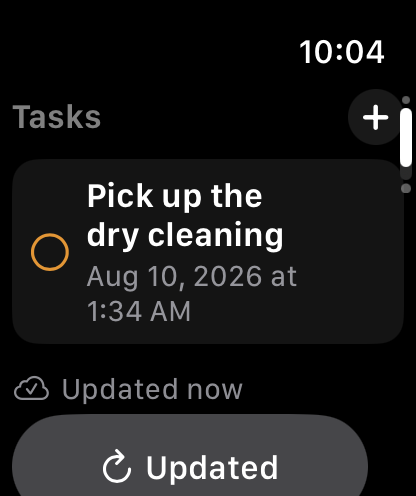
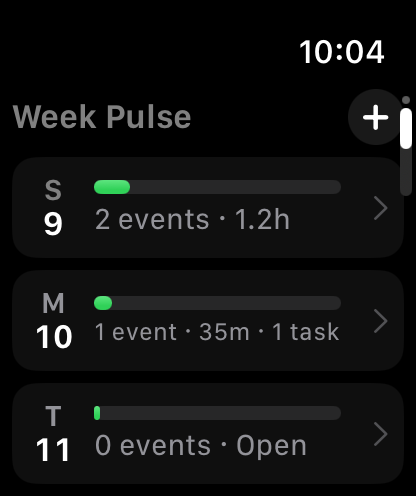
Tasks can use Smart Sections for Overdue, Today and Upcoming, group by reminder list, or stay as one continuous list. Week Pulse summarizes seven days without shrinking a desktop week grid onto the watch. Month is a real month view with marks across the year, fetching days as you reach them. Countdowns gives the dates you are waiting for their own page, with their photos. Overview collects the lot on one screen.
The rows under each title follow Appearance → Details, the same setting the phone uses. Text too long for the watch fades out at the edge instead of ending in an ellipsis.
Search can ask the paired iPhone for a future event beyond the seven-day wrist cache.
Tapping the weather glance opens Forecast Bar on the watch, on the day the forecast is for, if you have it installed.
Act from the wrist
Supported events can expose Join, Directions, RSVP and provider-aware editing. Reminders can be completed, restored and snoozed. Rescheduling offers 15 minutes later, one hour later, later today, tomorrow at the same time or an exact date and time when the event is editable.
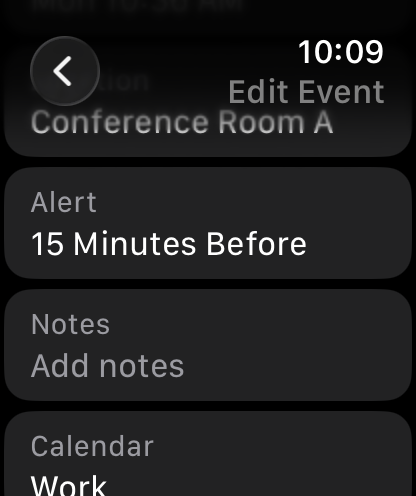
Common event edits include title, date and time, location, calendar, alert and notes. Reminder edits include title, notes, due date and time, priority and destination list. Recurring events use occurrence-aware safety controls, and organized meetings distinguish cancellation from deleting a personal event.
After the paired iPhone confirms a reminder, snooze, RSVP or event-move action, a short Wrist Undo option can reverse it. When the phone is unavailable, supported changes queue honestly and reconcile after reconnection.
Quick Add sends the sentence to the paired iPhone for a parsed review showing the type, title, time, destination, repeat, alert and location before creation. If the phone cannot review it, Watch labels the separate Queue Without Preview choice explicitly.
Configure Wrist Control on iPhone
Open InstaCal → Settings → Apple Watch on the paired iPhone. Choose which calendars reach the wrist, events and reminders, all-day policy, look-ahead, task grouping, overdue priority, end times, evening Tomorrow preview, map visibility and privacy.
Which calendars has three answers. Follows Agenda is the default and means exactly what your iPhone is showing right now, with nothing to set up — hide a calendar on the phone and it leaves the wrist with the next update. You can instead name a Calendar Set, or pick calendars one by one, which you can do from either device. Choosing them individually stores the ones you have hidden, so a calendar you connect next month arrives showing rather than silently missing.
Privacy can show full details, calendar names only or hide titles and details. Redaction happens on iPhone before the snapshot is sent to Apple Watch.
Complications and Smart Stack
Edit a watch face, select a complication slot and choose InstaCal. The thirteen complications are Date, Now, Now & Next, Up Next, Day Timeline, Leave By, Tasks Due, Today’s Load, Date & Next, Countdowns, Join Next, Conflict Check and Open Window. You can also add InstaCal to the Smart Stack.
On a face that tints its complications, InstaCal's follow the face's two tones rather than keeping their own colours. Every complication taps through to the part of the app it is about.
An unanswered invitation carries Accept and Decline on the tile itself, and a reminder checks off from Tasks Due in place, so neither needs the Watch app opened.
Each compatible placement can choose a Calendar Set, events or reminders, all-day policy, current-versus-next behavior, look-ahead, privacy and tap destination. The choices belong to that complication placement rather than changing the whole Watch app.
Each complication knows when it matters in the Smart Stack: Join Next rises before a video call, Leave By around the time you need to move, Tasks Due when something is overdue, and an upcoming event surfaces near its time instead of occupying the stack permanently.
How Watch gets its data
The Watch app keeps a seven-day local snapshot so browsing does not wait for a full phone query. It shows freshness and offline state instead of presenting old data as current. Supported actions use an idempotent outbox and wait for acknowledgement when the phone is temporarily unavailable.
Troubleshoot installation
Confirm the paired iPhone runs a compatible InstaCal version and the watch runs watchOS 11 or later. In the iPhone Watch app, find Available Apps and install InstaCal if needed.
