Choose a view
Use the view bar to switch among Agenda, Day, Week, Month, Quarter and Year. The compact bar can be enabled under Settings → Display → Button Layout when you want more room for the calendar.
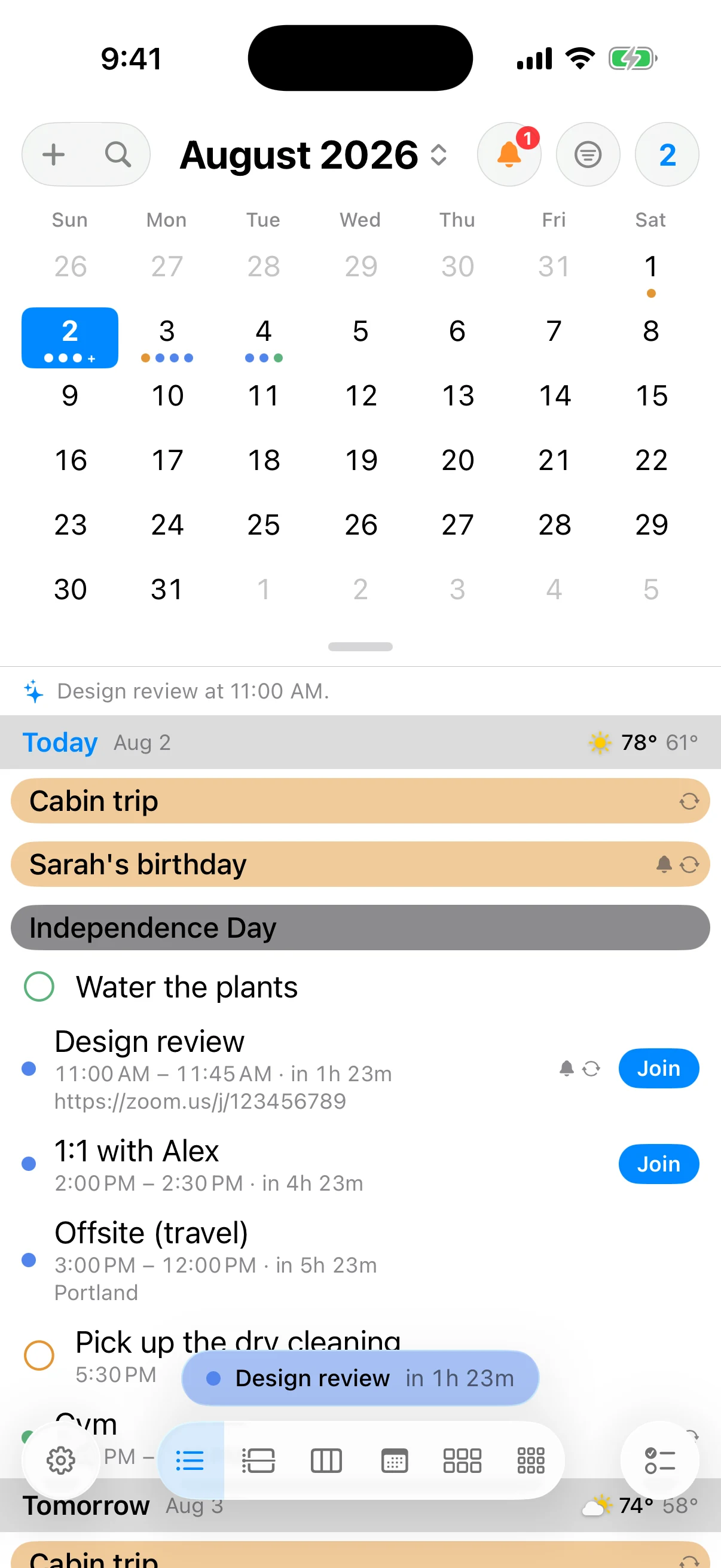
Agenda groups events and reminders by day under a mini month. Day is a single detailed timeline. Week shows a rolling three-day view in portrait and a full week in landscape. Month preserves all-day and multi-day bars. Quarter is one continuous thirteen-week grid; Year gives the longest-range overview.
Week on Week
Week on Week shows one weekday across the weeks, a week per column — every Monday in a row — so you can see which Mondays are already spoken for. Turn it on under Settings → Display → Gestures & Navigation → Week on Week view, and choose which column Selected week keeps in place. On iPhone it lives in the compact view switcher’s menu, so switching it on switches the bar to compact; on iPad it joins the view picker. Swipe sideways for more weeks.
Scrub the compact switcher
With the compact bar on, press the view switcher and slide up without lifting. The views rise above your finger and name where you are going as you pass over them. Lift to land there, or slide back down to leave the view as it was. A press-and-hold on the switcher jumps instead, and names where it landed for a moment above the bar.
The agenda header and Up Next
The agenda’s day header stays pinned as you scroll. While you are resting on your next event it reads Up Next, folding away the meetings already behind you, and it moves on to tomorrow once today is genuinely spent. The agenda opens on today and holds there while the app loads.
Every day for the next two years is drawn from the first frame, so a fling carries as far as you throw it instead of stopping at an edge while more days load. Events fill the days in as the calendar loads behind you.
Shape the Month grid
Month is one continuous run of weeks rather than a stack of separate months. Four settings under Settings → Display → Appearance → Month View decide how it looks:
| Setting | Options | Out of the box |
|---|---|---|
| Grid Scrolling | Scroll continuously, One month a page | Scroll continuously |
| Month Opens At | Current week, Entire month | Current week |
| Weeks Visible | 2 to 6 weeks on screen | 6 weeks |
| Days Shown | All days, Work days | All days |
Weeks Visible is also a pinch: with Settings → Display → Gestures & Navigation → Pinch Gesture set to Density — its starting value — pinching the Month grid changes how many weeks fit on screen. Month Opens At and Weeks Visible appear only while Grid Scrolling is set to Scroll continuously.
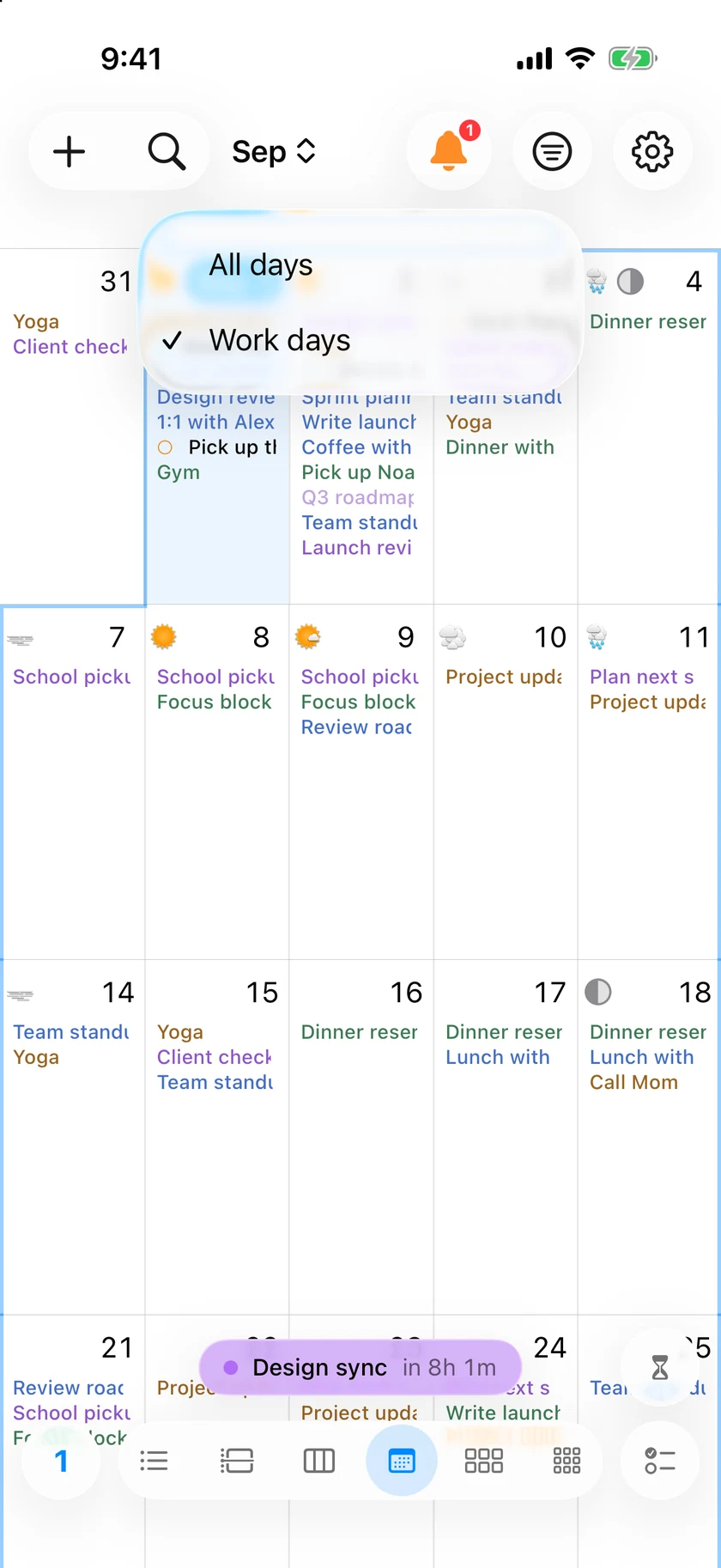
Days Shown has a shortcut on the grid itself. Tap the weekday header row — the strip reading Sun, Mon, Tue and so on — and a menu offers All days and Work days. Work days steps the weekend columns aside so the working week gets the full width. It works in Quarter as well as Month.
Today is a home button in Month
In Month view, Today works in three presses. The first lands on today’s week with any open day card closed — it goes home, wherever you had scrolled to. The second opens today’s card. The third closes it again, the same toggle the agenda’s Today does for Up Next. Tapping a day, Go to date and the Today keyboard shortcut still reveal a day’s week the way they always did.
Week, Quarter and Year
Week slides sideways without end in either direction. Settings → Display → Appearance → Weekly View → Days Shown chooses how many days it shows at once — 2 days to 7 days, starting at 3 days — and the hours stretch to fill a taller screen. The all-day strip above the grid shows every all-day event rather than stopping at four.
Quarter is one continuous grid of thirteen weeks, with a heavier rule where one month meets the next and a small dated chip — Sep 1 — on each month’s first day, rather than three separate month cards. It scrolls like Month.
Settings → Display → Appearance → Quarterly View decides where the selected month lands when you open Quarter, jump to a date or press Today. Current month position offers First, Middle or Last, and the same section holds Week numbers in Quarter.
The year as a wall planner
Year draws twelve mini month cards by default. Settings → Display → Appearance → Yearly View → View the Year As offers Wall Planner instead: every month is a row and the weekday columns repeat across it, so every Monday of the year lines up vertically. Turn the phone sideways to see the whole year at once. You can also switch from the year's own header.
Heat maps, chosen per view
A heat map shades each day by how busy it is rather than drawing individual dots, and Quarter and Year each have their own. The switches are Heat map in Quarter and Heat Map in Year, in the same two Appearance sections.
Move through dates
Swipe horizontally to move through the current view. Select a date in Month, Quarter or Year to make it active. Use Today to return to the current date.
Pinch behavior is configurable: it can move through the view ladder or change grid and timeline density. Open Settings → Display → Gestures & Navigation to choose the behavior you prefer.
Jump to a date
Type where you want to go
Tap the date at the top of the calendar — the title itself is the button, with a small chevron beside it — and a Go to date field opens under a month grid. Type a phrase and InstaCal shows the date it worked out; take it, or pick a day out of the grid instead. Today is always one press away in the same popover.
It understands a good deal more than a date: next friday, dec 25, aug 2027, 3rd Tuesday in October, last Friday of October 2027, end of the month, in three weeks, 2027 on its own, or a bare day number, which means that day in the month you are looking at. A date with no year means the next time it comes round, today included; give a year and you can go backwards.
Dates that cannot exist are refused rather than quietly rolled forward — Feb 30 clears the result instead of landing on March 2 — and this, next and last weekday count weeks from whichever day you set as the start of the week.
If the wording is something the built-in parser does not know, InstaCal can hand the phrase to Apple Intelligence on the devices that have it, and only then: a phrase it already understands never leaves the device, and neither does anything about your calendar. What is sent is the words you typed, today's date, the month on screen and your language. The date that comes back is shown for you to confirm, never jumped to on its own. This follows the same Parse quick entry with Apple Intelligence switch as quick add, so turning that off keeps everything local.
Work directly in the calendar
Select an event for details and actions. In time-based views, drag an event to move it and resize its edge in 15-minute steps. Long-press or use the add control to create an event at a date and time.
Editing or deleting one occurrence of a repeating Google or Microsoft event asks whether you mean This Event Only or All Future Events — from the editor, the event card, an agenda swipe, Month view and a drag in the Day and Week grids, the same question Apple calendars have always answered. Replying to one occurrence of a repeating invitation answers for the whole series.
The same calendar can show weather, moon phases, week numbers, a second time zone and Smart Filter results according to Settings.
Search the schedule
Open the shared Quick Add field and type a name or phrase without a date or command. Results appear from the calendars currently in scope. Select one to view, edit, join, share or navigate to it.
